For the couple who would rather not use a spreadsheet

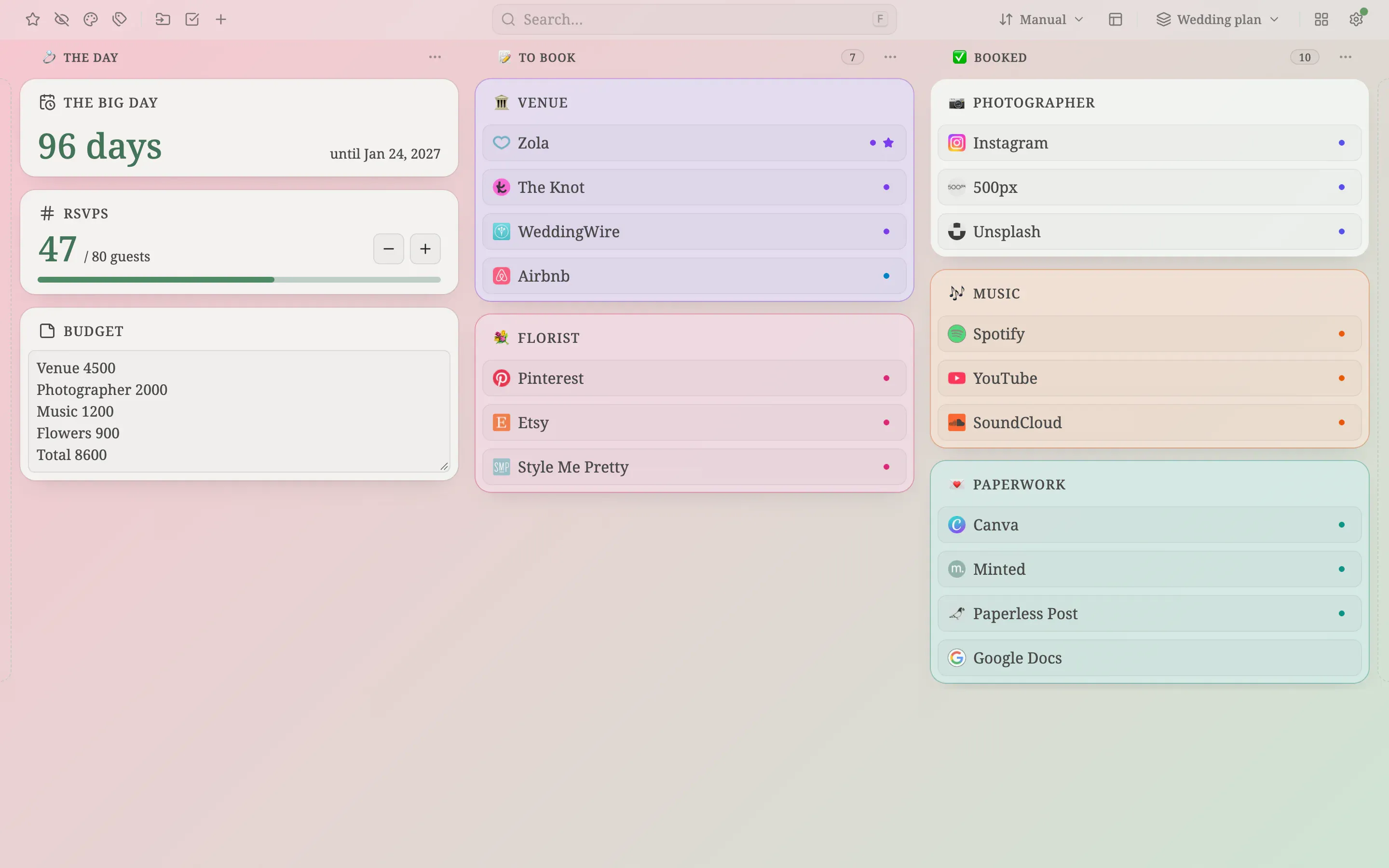
A pastel pink and sage gradient board with see-through folders in three named columns: a 96-day countdown, an RSVP counter, a budget note and vendor folders

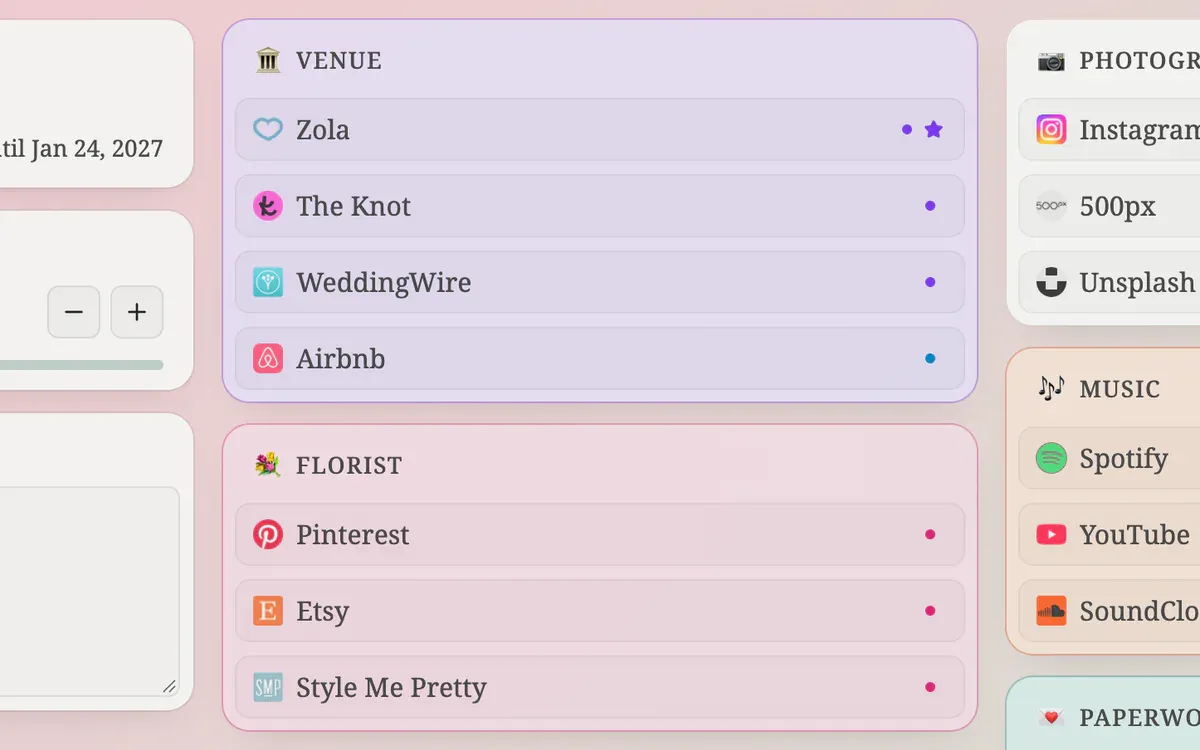
Close-ups

  • Venue and Florist folders with colored dots on each link marking its vendor tag
    Tags and color labels: every vendor has its own color
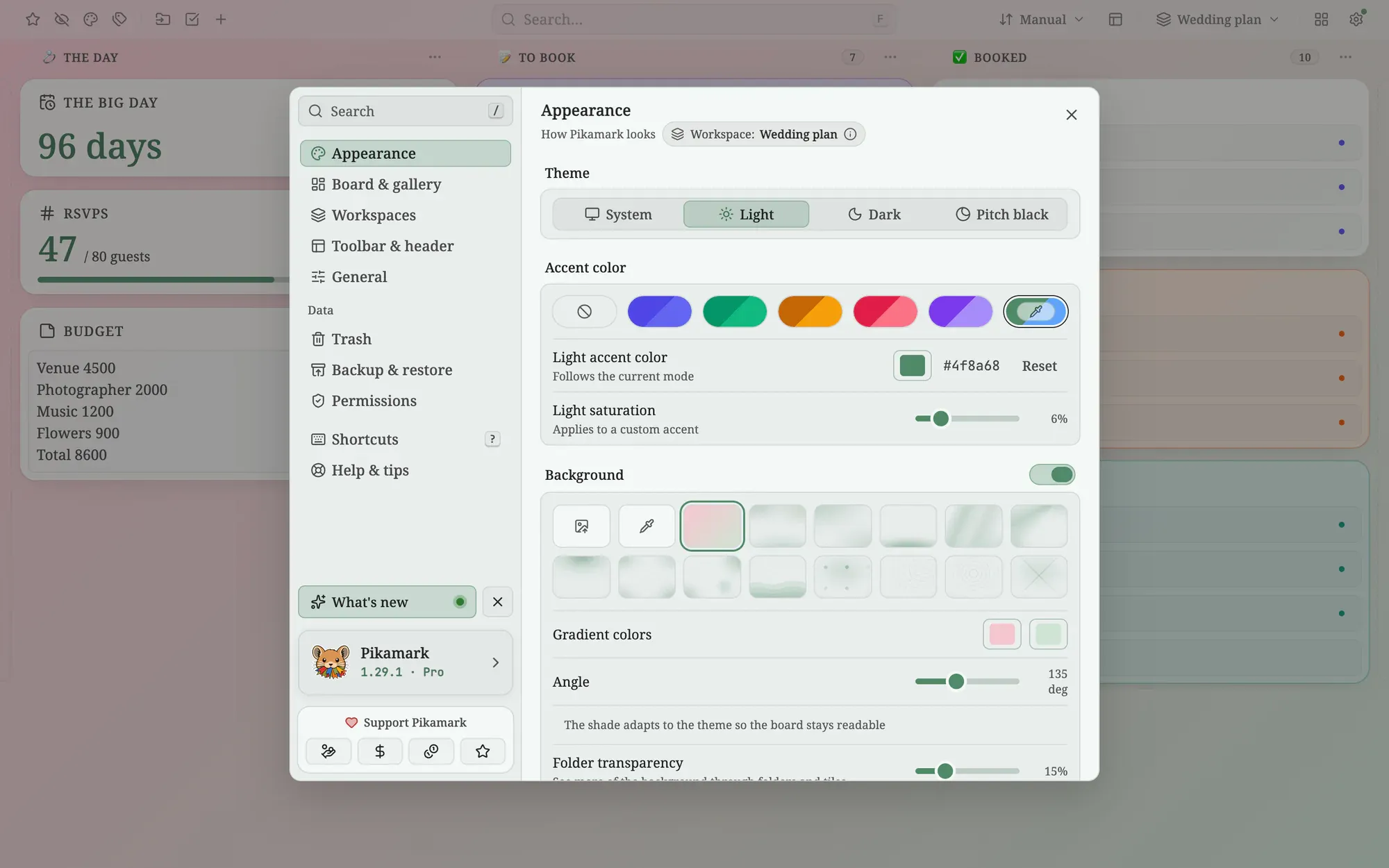
  • Settings open on Appearance with the gradient fill selected and its two colors and angle
    Appearance → Background: pick two colors and an angle

Plan a wedding without a spreadsheet

A wedding is a pile of small deadlines: venue, flowers, photographer, music, invitations. Most couples track them in a spreadsheet and keep the links somewhere else. On this board the links are the plan. Three columns, The day, To book and Booked, show how far each vendor has got, and a vendor moves to Booked once the deposit is paid

A countdown, an RSVP counter and a budget

The Countdown widget counts the days to the big day. A Counter tracks RSVPs against a goal (here 47 of 80 guests), and a note called Budget lists one cost per line, with the total at the bottom. They sit together in The day, so the numbers you check most are the first thing you see

A folder and a color for every vendor

Each vendor has its own folder, with an icon and a color: Venue, Florist, Photographer, Music and Paperwork. Tags such as venue, flowers and music mark what each link is for. The background is a gradient from blush to sage, set in Settings with two colors and an angle, and Folder transparency lets it shine through

The recipe

Every setting behind the screenshots, so you can match the look

Font
Serif
Theme
Light
Accent
Custom color
Background
Gradient fill
Layout
Columns
Toolbar
Off
Accent color
#4f8a68
Gradient
#f6c6d0 → #cfe3d4, 135°
Folder transparency
15%

How to build it

Everything below works in the current release. Parts that need Pro are marked

  1. Create a workspace named after the wedding Pro ↗ Workspaces
  2. Choose Gradient in Settings → Appearance → Background and pick two soft colors Pro ↗ Appearance
  3. Raise Folder transparency in the same place so the gradient shows through Pro ↗ Appearance
  4. Choose a custom accent color and the Serif font in Settings → Appearance Pro ↗ Appearance
  5. Add a Countdown widget set to the day Pro ↗ Widgets
  6. Add a Counter widget for RSVPs with a goal Pro ↗ Widgets
  7. Sort the vendors into columns named To book and Booked and give each an icon: open the column’s ⋯ menu Pro ↗ The board and columns
  8. Add a note called Budget with one line per cost ↗ Notes
  9. Create a folder per vendor and give each a color: open the ⋮ menu and choose Color & tags ↗ Favorites, color labels and tags
  10. Add tags such as venue, flowers and music to the links Pro ↗ Favorites, color labels and tags

Your own bookmarks are not part of a setup. They stay where your browser keeps them, and the board shows them in the columns you choose

What’s free, what’s Pro

Free already covers the basics: notes such as the budget, and a color-labelled folder for every vendor. Pro adds the workspace, the gradient background, a custom accent, folder transparency, column names and icons, tags and the Countdown and Counter widgets

Pro comes with a 14-day trial and no card, so you can try every Pro step before you pay

Wedding plan

Build this setup

Install free, try Pro for 14 days, no card

Edge disables new-tab extensions after install — here's how to turn Pikamark back on

Read the manual

Free core · No account · Chrome, Firefox, Edge, Brave, Vivaldi and Opera