
What Pikamark is
Pikamark replaces your browser’s new-tab page with a board built from your real bookmarks. It reads the browser’s own bookmark tree, so what you already have shows up at once, and every change you make here is a change to the real bookmark — editing and deleting in the browser keep working alongside it.
Everything runs locally. There is no account and no server, and your bookmarks, notes and tags never leave the browser. Pikamark does not sync its own data: your bookmarks sync through your browser account as before, and Export (see Backup and restore) moves notes, tags and settings to another computer.
Features marked Pro need the Pro plan; everything else is free (see Pro and early users).
First five minutes
The first new tab opens a short tour: the language, then the header (filters, Add, the command palette, sort and view), the gallery (a full-screen tile view, see Gallery view), Settings and the item menu, which appears when you hover an item. A last card lists a few more things worth knowing. Skip tutorial ends it, and Settings → Help & tips → Replay the tour starts it again. On a fresh install with nothing to lose, Pikamark afterwards offers once to restore a backup from another browser.
Then try these four things:
- Add something. Click the browser’s ☆ in the address bar, or paste a few links onto the board
- Press
F. The command palette finds any bookmark, folder or note, and starts an action with> - Open Settings. The gear at the right end of the header; press
/inside it to search every setting by name - Press
?. Every keyboard shortcut in one list
Getting bookmarks in
- Address-bar star /
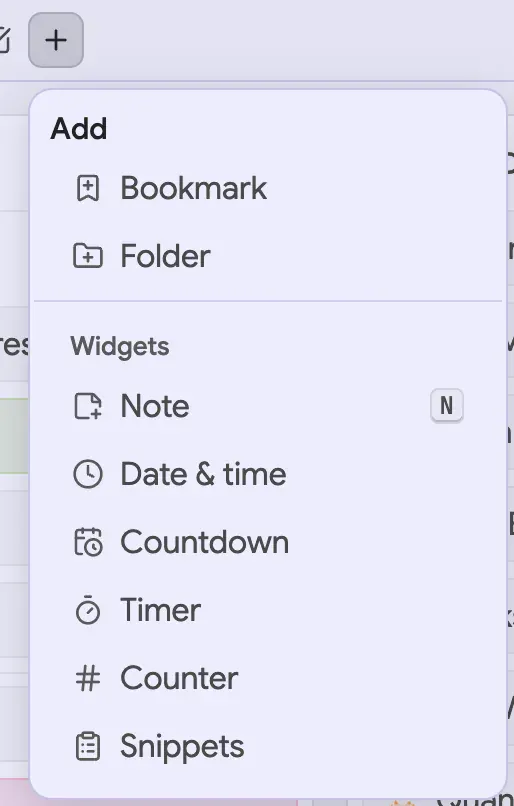
Ctrl+D(⌘+D) — the browser’s own “bookmark this page” works as always, and the bookmark appears on the board - Add → Bookmark — the + button in the header. Give a URL and an optional
title; a URL without a scheme gets
https:// - Paste links — press
Ctrl+V(⌘+V) on the board, outside a text field, and everyhttp(s)://link in the clipboard is added - Drag links in from another app or window. Drop onto a folder to file them there; several links dropped on empty space land together in a new folder
- Save open tabs as folder — the header button files your window’s tabs, skipping browser-internal pages, in a new folder. It needs the optional Open tabs permission, requested on first use
- The toolbar popup — Save this tab files the page you’re on into any folder (see Toolbar popup)
Every import shows an undo toast for a few seconds.
The header
The bar across the top holds what you reach for while browsing:
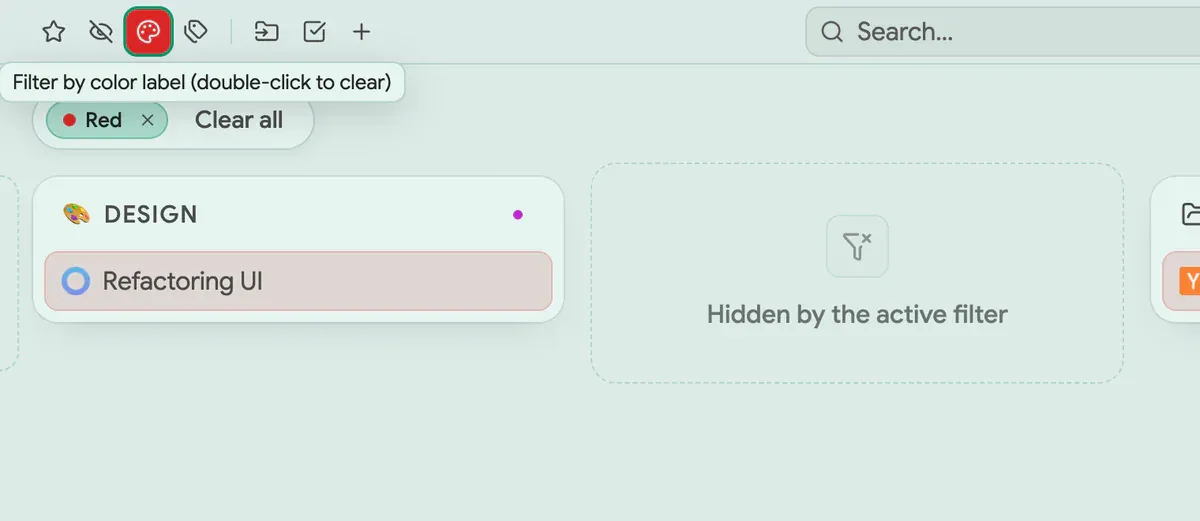
- Filters — ☆ Show favorites only, an eye for Show hidden items, a palette for Filter by color label and a tag for Filter by tags (Pro). Active filters show as chips in a bar under the header; Clear all drops them
- Save open tabs as folder, Multi-select and Add (+)
- Search — the field in the middle opens the command palette
- Sorting — Manual, Name or Date added, ascending or descending for the last two
- View, Workspaces (separate setups over the same bookmarks, see Workspaces) and Pinned links (both only when placed in the header, see Toolbar and pinned links), Gallery (opens Home) and Settings, the gear
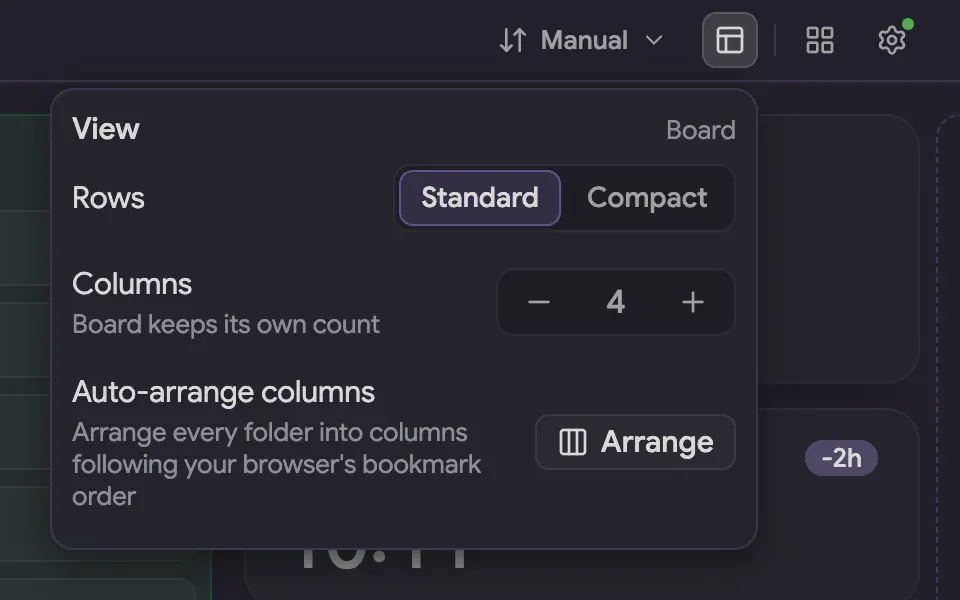
View changes with where you are. On the board: Rows (Standard or Compact, which fits more bookmarks per column), Columns (up to 7) and Auto-arrange columns. In the gallery: Layout (Grid or List), Density (Compact or Extended) and Columns. Board, grid and list each keep their own column count. The same choices live in Settings → Board & gallery.
Two things about sorting: dragging to reorder only works in Manual sort, and sorting reorders items inside a folder or search result, never cards or columns. On a window under 900 pixels, the filters, create buttons, Sort and View fold into one Menu button.
The board and columns
Your Bookmarks Bar’s top-level folders are spread across columns. Set how many in View → Columns; the board never rearranges itself otherwise. Other roots (Other Bookmarks, Mobile Bookmarks) sit in a separate section below the board. Folders nest as deep as your bookmarks do.
Moving things: drag a folder or bookmark by its handle. The layout stays still while you drag — one accent line shows whether you’ll drop before, after or inside the target — and holding over a closed folder springs it open so you can drop inside.
Adding a column: drag an item onto the strip at either edge of the board, or onto the gap between two columns; both light up only while you drag. Removing one: an empty column offers Delete column.
Auto-arrange columns (View on the board) is a one-off action with a confirm step. It spreads your folders across the columns in your browser’s own bookmark order, touching only which column each folder sits in, never the bookmarks.
Folders and bookmarks
- Open or close a folder card by clicking its header; the state is remembered
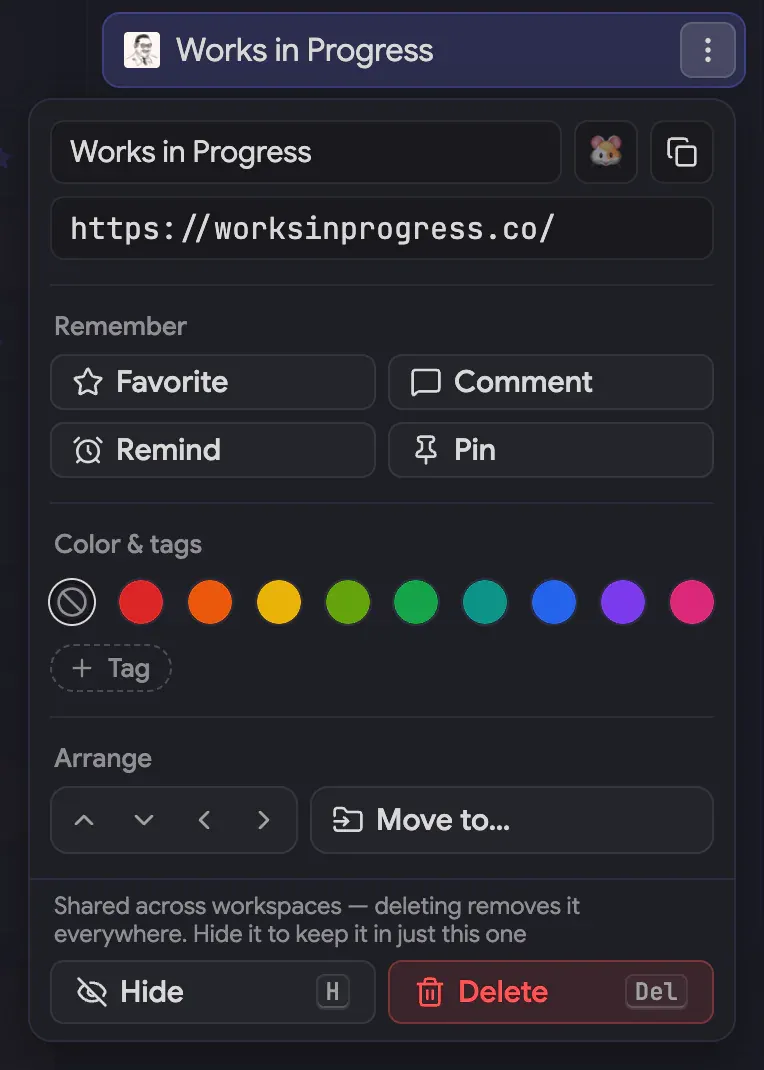
- The ⋯ menu edits an item. Name and URL save as you type; the icon button sets a custom emoji (Pro). Then Remember (Favorite, Comment, Remind, Pin), Manage (for folders: Gallery, Open all, New folder, New bookmark), Color & tags, Arrange and Copy. Copy puts a bookmark’s link on the clipboard in any format, a folder’s links likewise (Markdown, HTML, CSV and a tree are Pro) and a note’s text; see Selection mode for the formats
- Open all opens every link in a folder as background tabs, asking first past 15. With Settings → General → Group opened tabs on, they open in one tab group (Chrome, Edge and Firefox 139+; optional Tab groups permission)
- Move to… in Arrange files a bookmark or folder into any other folder. The picker has a search box and works from the keyboard, so it replaces dragging
- Hide takes an item off this workspace’s board without touching the bookmark; the header’s eye brings hidden items back. With workspaces on, it keeps a shared bookmark off one board
- Delete removes the item at once and raises an undo toast; then it waits in the trash
With the menu open, H hides and Del deletes. A bookmark with no title shows its
hostname, and a missing favicon becomes a letter tile.
Notes
Add a note from Add → Note (or press N). A note is a card on the board next to
your folders, with a title and either of two bodies, or both:
- Note text — free text
- Checklist — items you tick off and drag into order; add them with the Add item field at the bottom
Both are buttons in the card header and in its ⋯ menu. Click the header to collapse a note to its title. Notes take favorites, color labels, tags, comments and reminders just like folders do.
Command palette
Press F, or click the search field. With no text it lists Recent and Suggested
entries. Type to find a bookmark, folder or note by name or address; Enter opens it and
Shift+Enter shows a bookmark or folder on the board instead.
A first character narrows the search to a scope:
>— Actions: Create (bookmark, folder, note, widget), View (selection mode, board or gallery, favorites only, clear filters), Appearance (theme) and Settings (every page, plus the shortcuts list)#— Tags (Pro) and colors@— Workspaces (Pro)/— Folders: jump to one
Backspace on an empty field drops the scope. Under the results, Show all matches for
“…” on the board filters the board in place (Esc clears it), and Search the web for
“…” opens your browser’s default search engine in a new tab; Pikamark can’t offer its own
engine. With no matches, Search the web is the only row and Enter runs it.
Pro actions stay visible without Pro: the countdown, timer, counter and snippets widgets and the pitch-black theme open the Pro dialog. To search inside one folder, use its Search this folder button, or the search field in the gallery header’s right-hand pill.
Keyboard
Single-key shortcuts work whenever you’re not typing in a field:
F— open the command paletteN— add a noteV— switch between board and galleryS— turn selection mode on or off?— open the shortcuts list (Shiftand the slash key, on any layout)/— search the settings, while Settings is openEsc— steps back one layer per press: clear the selection, clear filters, go up a gallery folder, leave the gallery. It also closes popovers, cancels a rename and skips the tourEnter— confirm a name prompt, add a checklist item, or run the highlighted palette rowCtrl+V/⌘+V— paste links to import them
In lists and menus, ↑ and ↓ move, Home and End jump, and a letter jumps to a match.
There is no keyboard drag and drop: Move to… and the Arrange arrows in an item’s menu
do the job.
Toolbar popup
Pin Pikamark’s icon to the browser toolbar to reach your bookmarks from any page,
without opening a new tab. Type to search, move through results with ↑ and ↓, and
press Enter to open one.
Save this tab files the current page: set a name, pick a folder and save. The last folder is remembered. It needs the optional Open tabs permission (Allow access asks for it) and can’t save browser-internal pages such as the new-tab page. Open Pikamark jumps to the board.
When the page is already bookmarked, the popup shows Saved in “folder” instead, with Move to refile it and Save a copy to keep a second one. With the Open tabs permission granted and two or more savable tabs open, Save all tabs files them into a new folder. With nothing typed, the popup lists your eight most recent bookmarks.
Keep your own new tab
Pikamark offers to replace your new-tab page, but you can say no. Decline the browser’s prompt, or revert it afterwards (Edge switches the extension off at first, so turn it back on). Then click the toolbar icon and Open Pikamark: the board opens in a tab at its own address. Bookmark that address, or set it as your home page, and open it whenever you want the board. The toolbar popup works the same either way.
Favorites, color labels and tags
- Favorite — Favorite in an item’s ⋯ menu. Show favorites only in the header hides everything else
- Color labels — nine colors, under Color & tags in the menu. Filter by color label in the header narrows the board to one; double-click the button to clear it
- Tags (Pro) — free-named, each in one of 14 colors, and several per item. + Tag in the menu searches your tags or creates one. Filter by tags in the header narrows to items carrying all the tags you pick; Edit in that popover renames, merges and deletes tags
Without Pro, comments and reminders you already have turn read-only; clearing still works. Favorite, color, tag and search filters combine.
Comments and reminders
Every bookmark, folder and note can carry one comment and one reminder (both Pro), set from Remember in its ⋯ menu.
- Comment — one free-text note on the item. A badge on the card shows it on hover; clicking the badge opens the editor
- Reminder — Tomorrow (09:00 local) or Pick a date and time, with an optional message. Reminders are checked when a new tab opens, so one surfaces at the first new tab at or after its time, not on the minute. The toast offers Show (jump to the item), Complete reminder and Snooze 1 day
Once at least one reminder exists, a Reminders tool appears in the toolbar and lists them with their due dates. Reminders are not included in backups, and they clear themselves once they have fired.
System notifications
With System notifications (Pro) on, a reminder or a running timer reaches you as a notification from your operating system, even when no Pikamark tab is open. Turn it on in Settings → General → Notifications; the browser then asks to let Pikamark show notifications and set alarms. If you decline, the switch stays off and says why, and you can try again.
- Reminders notify at their time, with the message or the item’s name. Clicking the notification opens a new tab, where the usual reminder toast offers Show, Complete reminder and Snooze 1 day
- Timers (Pomodoro and plain timers) notify when the current phase ends. Pausing, resetting or skipping cancels the notification, and starting again schedules a new one. Only timers in the active workspace notify; countdowns don’t
- Locked items never show their name or message: the notification just says a reminder is due
- Notifications appear only while the browser is running. Anything missed while it was closed shows once when it starts again, if it is less than a day old; older reminders wait for the toast in your next new tab
- Turning the switch off cancels every pending notification. The browser keeps the permission until you remove it in its extension settings
Widgets
Widgets are live cards on the board. Add one from Add in the header (or Add widget in the gallery’s sidebar), drag it into place like any item, and open its ⋯ menu for options. Every widget can show Monochrome or Accent text.
- Date & time — free. 12-hour or 24-hour time, seconds, a full or short date, and Compact or Large size. Other Time zones are Pro; the offset from your local time shows beside it
- Countdown (Pro) — pick a date; it shows the days until it, or since it once it has passed
- Timer (Pro) — Pomodoro with Focus and Break lengths in minutes, or a plain Timer for one duration. Start, Pause and Reset on the card; Skip break during a break
- Counter (Pro) — + and − (hold
Shiftfor a bigger step), or click the value to type it. The menu sets the step, an optional Goal with a progress bar, a Unit such as ml, and an automatic daily or weekly Auto-reset - Snippets (Pro) — pieces of text you paste often, as many as you like. Click a row to copy it; give each one an optional emoji. The card shows only the label, and the text appears only when you edit it. Snippets are included in backups, so keep that in mind before you share a backup file
- Photo (Pro) — up to six pictures in a frame. Pick your images, then choose how they fit (Show all or fill the frame), their shape and, in a fixed shape, which part stays visible (Position). Use the arrows to flip through them, or set Change photo to switch on every new tab, every minute or daily. The frame can also open one link when you click it (a bare domain is enough). The photos are stored only on this device: they are not included in backups or exports, so after a restore or an import on another device the widget asks you to add the pictures again
Without Pro, a countdown, timer, counter, snippets or photo widget you already have stays locked, with its data kept.
Selection mode
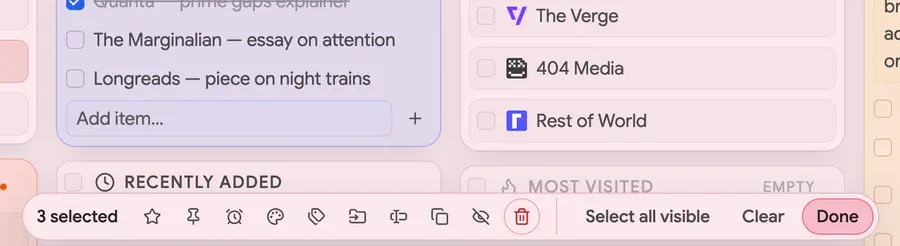
Selection mode acts on many items at once. The Multi-select button in the header turns
it on (or press S), and a checkbox appears on every item.
- Pick items with the checkbox, a click anywhere on a card,
Shift+click for a range, or by dragging across several - Act on them from the bar that appears: Tags (Pro), favorite, Color label, hide, reminder (Pro), pin (Pro), Move to… or delete. An action that doesn’t apply, such as tags on a note, says why
- Select all visible takes everything the current filter and view show; Clear
empties the selection and Done (or
Esc) leaves the mode - Drag-to-rearrange is off while selection mode is on
- Copy links puts the URLs of the selected bookmarks, and of everything inside selected folders, on the clipboard, one per line, in board order; hidden items stay out unless Show hidden is on. The format list also offers Markdown, HTML, CSV or a folder tree (Pro). Notes can’t be copied here
- Rename (Pro) renames the selected bookmarks and folders in one go: type what to Find and what to Replace with, with Match case, Regex or a Case if you need them. The preview lists only the titles that would change, and one Undo puts the old titles back. Notes can’t be renamed
Gallery view
Gallery is a full-screen, tile-based way to browse. The header’s Gallery button opens
Home, your whole Bookmarks Bar; Gallery in a folder’s ⋯ menu opens that folder.
Esc steps up one folder, and again from the top to leave. V switches between the
gallery and the board, and the header’s exit button does too.
- Navigate with the breadcrumb trail, Jump to folder (a searchable list) or by clicking folder tiles. The header is two floating pills: the trail on the left and, on the right, a search field, the exit button and a ⋯ menu. Each folder and Home has its own search. Home’s ⋯ menu offers Copy, Open all, New folder and New bookmark; a top-level folder gets the full folder menu, except that Other Bookmarks and Mobile Bookmarks can’t be renamed or deleted
- Layout — Grid or List, with Compact or Extended density, from View or Settings → Board & gallery
- Sidebar — a panel on the right, closed until you open it, resizable by dragging its edge. Its Widgets tab holds your notes and widgets (Add creates one here), and its Folders tab lists top-level folders as drop targets. Reordering inside the sidebar never changes where an item sits on the board
Toolbar and pinned links
Pikamark has an optional toolbar for what you reach for across the whole board: Reminders (once one exists), Sessions, Trash and its own ⋯ settings. Settings → Toolbar & header → Toolbar → Placement sets where it sits:
- Floating — pills hovering over the board
- Docked top or Docked bottom — a flat bar pinned to that edge
- Off — no toolbar
Workspaces and Pinned links (both Pro) each choose their home on the same page: Toolbar, Header or Off. A switcher or pinned row placed in the toolbar stays on screen even with Placement set to Off.
Pinned links is a launcher for the links you open constantly. Pin a bookmark from its
⋯ menu (Remember → Pin), up to 16; pins belong to the workspace you pin them in. Click
a favicon to open it. Edit on the row switches to edit mode, with arrows to reorder
and an ✕ to unpin; Done (or Esc) leaves it. Names on pinned links chooses
Auto, Names or Icons: Auto shows names beside the icons when the toolbar is
docked and icons alone when it floats.
Sessions
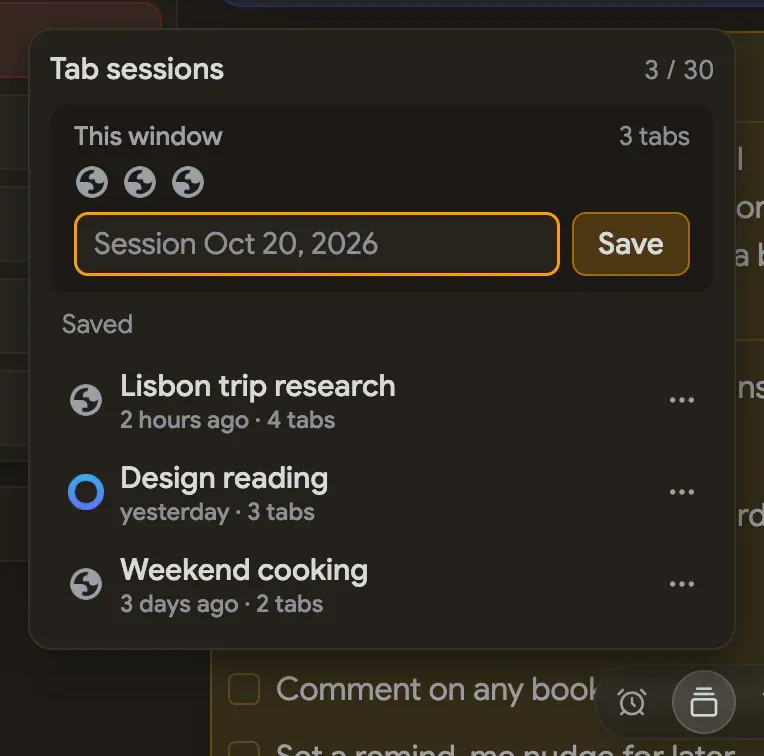
The toolbar’s Sessions tool (Pro) keeps named sets of open tabs to bring back later. A session stores one window’s tab titles and URLs outside your bookmarks, so saving one never adds a folder. Sessions belong to the current workspace.
- Save — the This window box reads your current window, skips browser-internal pages and stores the rest under a name you can change first. Up to 100 tabs are kept
- Restore — click a session’s name to reopen its tabs as background tabs, in one tab group if Group opened tabs is on. Your open tabs stay put
- ⋯ on a row offers Update to current tabs, Rename, Delete and Remove tab. Delete raises an undo toast and skips the trash
- A workspace holds up to 30 sessions; at the limit, delete one to save another
Sessions are part of Export. To keep pages as real bookmarks, use Save open tabs as folder instead.
Workspaces
Workspaces (Pro) are separate setups, such as Work and Hobby, over the same bookmarks. Turn them on in Settings → Workspaces, which also lists them and sets where the switcher sits. A workspace remembers its own theme and background, columns, sort, notes, widgets, favorites, color labels, tags, comments, pinned links, hidden items, sessions and trash. Your bookmarks are shared by every workspace and never duplicated.
Create a workspace (it starts as a copy of your current setup), rename it in place, or delete
it with an undo toast. Deleting never touches bookmarks. Switch from the toolbar or header
switcher, or with @ in the command palette. Turning workspaces off asks which one’s setup
to keep.
Settings pages that save per workspace (Appearance, Board & gallery, Toolbar & header, General, Trash) show a Workspace chip naming the one you’re changing.
Appearance
All in Settings → Appearance, saved per workspace:
- Theme — System, Light, Dark or Pitch black (Pro), a true-black dark surface
- Accent color — five presets (Indigo, Emerald, Amber, Rose, Violet) or Custom (Pro), with its own color for light and dark mode. Saturation, how much accent shows in surfaces, applies to a custom accent only
- Background (Pro) — one switch for the section. Pick a built-in look, Upload… an image, or choose a solid Color or a Gradient with a start color, end color and angle. Intensity (10–100) sets the strength, Parallax shifts it gently as you scroll, Film grain smooths gradients, and Soft glow adds an accent gradient to the four pattern looks. Photos are downscaled to fit the storage budget
- Font — Sans, Mono or Serif; links and shortcuts stay monospaced. New installs start with Sans; if you used Pikamark before the redesign, yours stays Mono until you change it
Settings tour
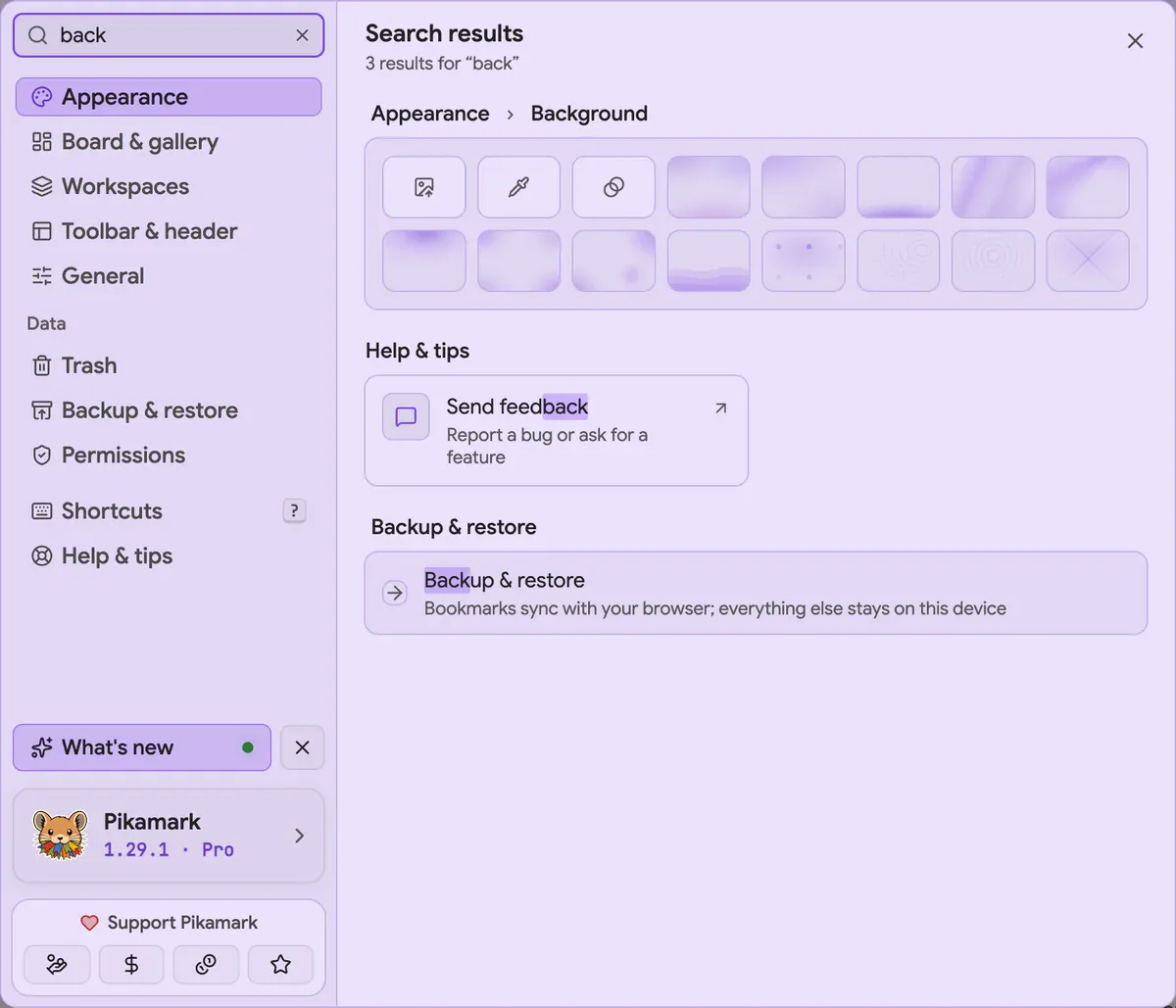
Settings is a dialog opened by the gear (or Open settings in the palette). Press / to
search every setting by name; Enter opens the first result and highlights its row. Each
page’s options are described where the feature is:
- Appearance — see Appearance
- Board & gallery — row style, columns and gallery layout (see The header), plus Extra folders, below
- Workspaces and Toolbar & header — see Workspaces and Toolbar and pinned links
- General — Language (for the app, the manual and the tips), Open bookmarks in new tab, Group opened tabs, Tooltips, Animations and Board shows, for browsers that keep synced and device-only bookmarks apart
- Backup & restore, Trash, Permissions — under Data; see Backup and restore, Trash and Browsers and permissions
- Help & tips — manual, tips, What’s new, shortcuts, Replay the tour, Send feedback
- Shortcuts — every key, searchable;
?opens it too - About — version, plan and the Pro section; open it from the version line under the page list
Extra folders holds Recently added, Most visited and Empty folders. The first two are discovery folders that appear on the board and in the gallery once switched on. Most visited counts clicks inside Pikamark only, not your browser history. Their entries can be moved into a real folder with Move to….
Trash
Deleting a bookmark, folder or note first raises an undo toast for a few seconds. After that the item waits in Settings → Trash, or in the toolbar’s Trash tool, which shows the same list for the current workspace. Each entry shows its age and, for a folder, how many items it holds, with a Restore button. Empty trash discards the current workspace’s entries at once and cannot be undone.
The trash keeps up to 20 items, within a small size budget, for 7 days, whichever limit comes first. It is for the mistake you notice an hour later; backups cover longer.
A restored bookmark or folder is new as far as your browser is concerned, so the tags, color labels and reminders kept against the old one don’t come back, and the toast says so. Notes restore intact.
Backup and restore
Your bookmarks sync through your browser account. Everything Pikamark adds (notes, tags, color labels, layout and settings) is stored on this device only, and the card at the top of the page says so. That is what the backups below are for.
Settings → Backup & restore opens with one line stating where your backups stand, such as
“Backed up today 14:20 · Pikamark folder” or “Backed up 3 days ago · this browser only”.
Below it are three groups.
Backup file (free). Export writes a JSON file named after this device and the day, like
pikamark-export-chrome-macos-2026-09-02.json, with your notes, widgets, favorites, color
labels, tags, comments, appearance, gallery state, sessions and every workspace. It does not
hold your bookmark tree (your browser syncs that), reminders or background images. Import
asks you to confirm first, naming what’s in the file, re-links notes and tags to your current
bookmarks by URL where ids changed, and reports how many it re-linked or skipped. Pikamark
takes a snapshot right before any import.
Automatic snapshots (Pro). With Take a snapshot every day on, opening a new tab saves a snapshot once a day has passed since the last; nothing happens while the browser is closed. The newest five appear under Saved snapshots, each with Restore (the same confirm step as an import). Back up now saves one on demand; Clear history removes them, after one last snapshot. Snapshots live in the browser profile, so they survive a bad import, not a lost profile.
Backup folder (Pro, Chrome and Edge). Connect folder, pick a folder your cloud service
syncs, and Pikamark creates a Pikamark sub-folder there. Each snapshot is also written to it as
a dated file, so a copy outlives the profile.
- After a browser restart the browser asks for folder access again. Grant it “on every visit” and it stops asking. Until then a notice offers Restore access and nothing is written; Disconnect forgets the folder and leaves its files alone
- One set of files per device, named like
pikamark-backup-chrome-macos-a1b2c3d4-2026-09-02.json. Each device keeps only its own latest few, so one never deletes another’s. Rename a device by clicking its name on the This device row - Restoring another device’s backup: the folder’s list groups backups by device, each with Restore, and Pikamark offers to restore when another device has a newer one. Picking the file by hand with Import works too
A notice reminds you when it matters, on every browser. Once you have real data (five notes, or any tag, comment, reminder, extra workspace or custom column count) and no copy outside the browser profile in the last two weeks, it offers Save a copy, or Connect folder with Pro on Chrome and Edge. The first one comes a day after you start, then after 7, 14 and every 30 days if you dismiss it. Saving a copy with that button or Export, or a successful folder write, quiets it for two weeks. After a month without a copy, the Settings button shows a dot. On a new computer with synced bookmarks and an empty board, a card offers Restore a backup.
Moving to a new computer
- On the old computer, save a backup file with Export. With Pro on Chrome or Edge, connect a folder in iCloud Drive, Google Drive or Dropbox instead.
- On the new computer, install Pikamark and sign in to your browser, so your bookmarks arrive.
- Restore from the file with Import, or connect the same folder and accept the newer backup.
The same three steps are in Moving to a new computer? in this section.
Pro and early users
The board, gallery, drag and drop, search, notes, favorites, color labels, trash, export and import, discovery folders and the light, dark and system themes with five accents are free and always will be. Pro adds tags, comments and reminders, workspaces, pinned links, tab sessions, backgrounds, pitch black and custom accents, custom icons, other time zones plus the countdown, timer, counter, snippets and photo widgets, and automatic snapshots with the backup folder.
Settings → About → Pro lists them and offers a 14-day trial with no card. After you buy Pro,
Freemius shows a license key (it starts sk_) and sends it in your receipt email; it is also
in your Freemius account. Paste it into License key in the same section and select
Activate. One license works on up to 3 devices.
If Pro ends, nothing is deleted. Pro features lock or turn read-only, a dialog lists what changed, and re-activating brings everything back as it was.
If you used Pikamark before Pro existed, it stays unlocked for free in the browser profile you
already had it in; on a new browser or computer, email ramapitex@gmail.com and I’ll send a key
that carries your Pro across.
Reinstalled a few times, or moved computers without deactivating the old one? Old activations don’t free themselves. In the Pro section, Open your account and deactivate a device you no longer use.
Browsers and permissions
Pikamark runs on Chrome, Edge and Firefox from one codebase. Vivaldi and Opera work too,
through the toolbar popup rather than the new-tab page. It asks up front only for bookmarks,
storage, search (for web search) and, on Chromium, favicon. Three more are optional and
requested only when you use the feature: tabs (save open tabs, sessions, the popup’s Save
this tab), tabGroups (Open all in one group; Chromium and Firefox 139+) and access to freemius.com (the
Pro license check). Settings → Permissions lists the optional ones and lets you grant
them later if you dismissed the prompt. notifications and alarms are optional too, requested together only when you turn on System notifications.
There is no tracking and no analytics. Pikamark contacts a server only for the Pro license check, and your bookmarks, notes and tags are never part of it. The one other traffic is on Firefox, which has no built-in icon cache and so loads each bookmark’s site icon straight from that site; Settings → General turns this off.