For the freelancer juggling three clients at once

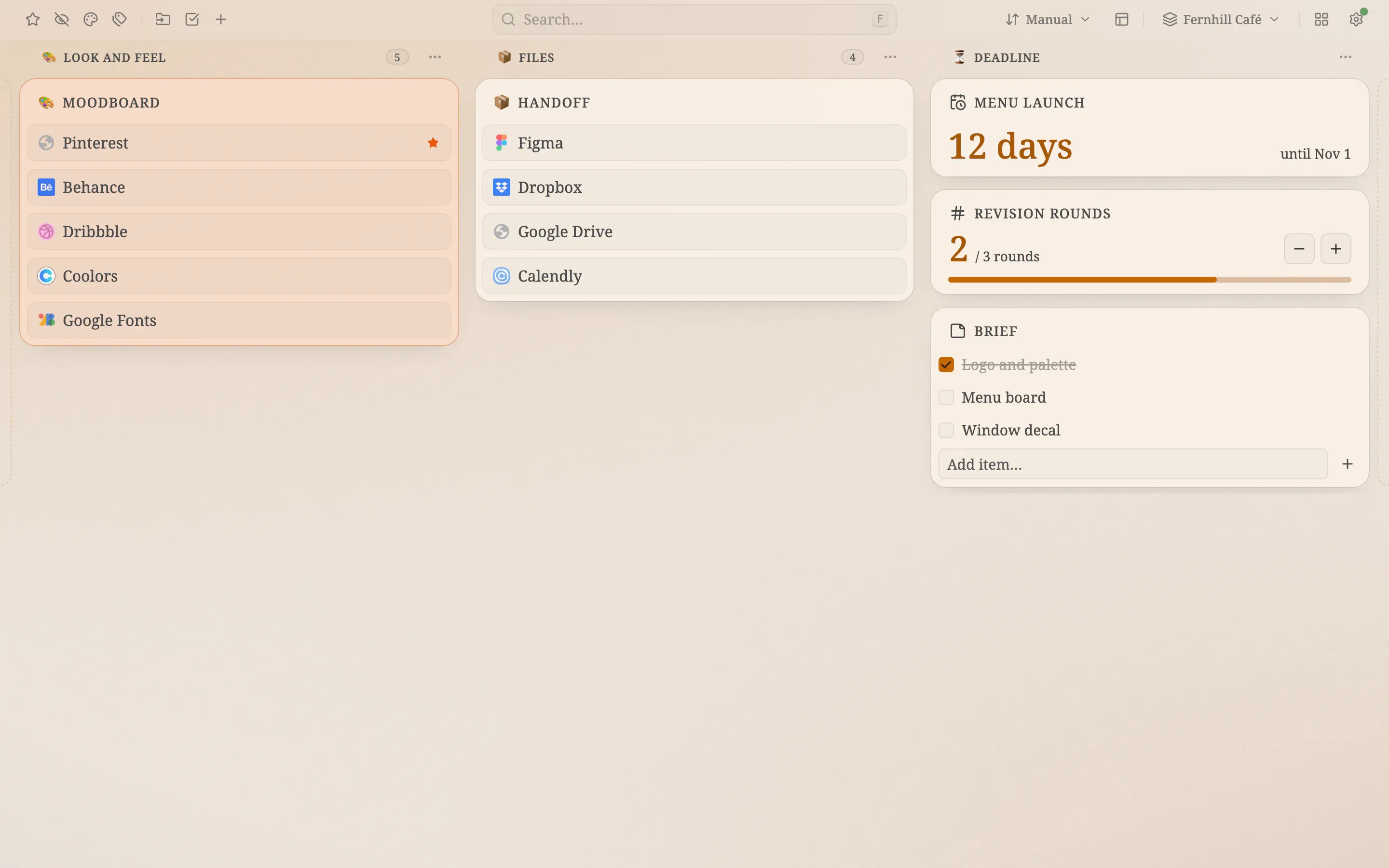
A light amber board for a café client: columns named Look and feel, Files and Deadline, a menu-launch countdown, a revision counter and a brief checklist

Close-ups

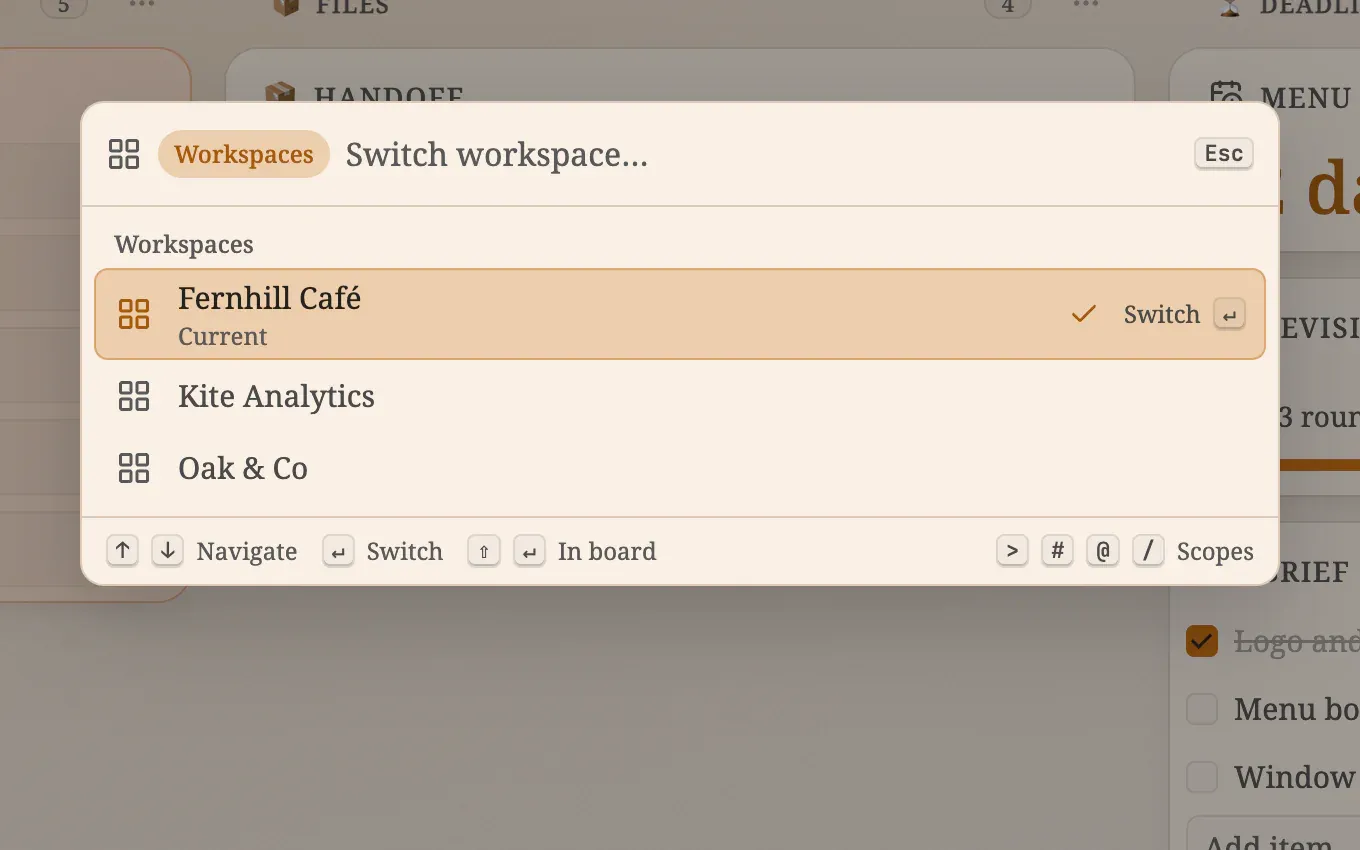
  • The command palette in workspace mode listing Fernhill Café, Kite Analytics and Oak & Co, with the current one checked
    Type @ in the palette to jump to any client
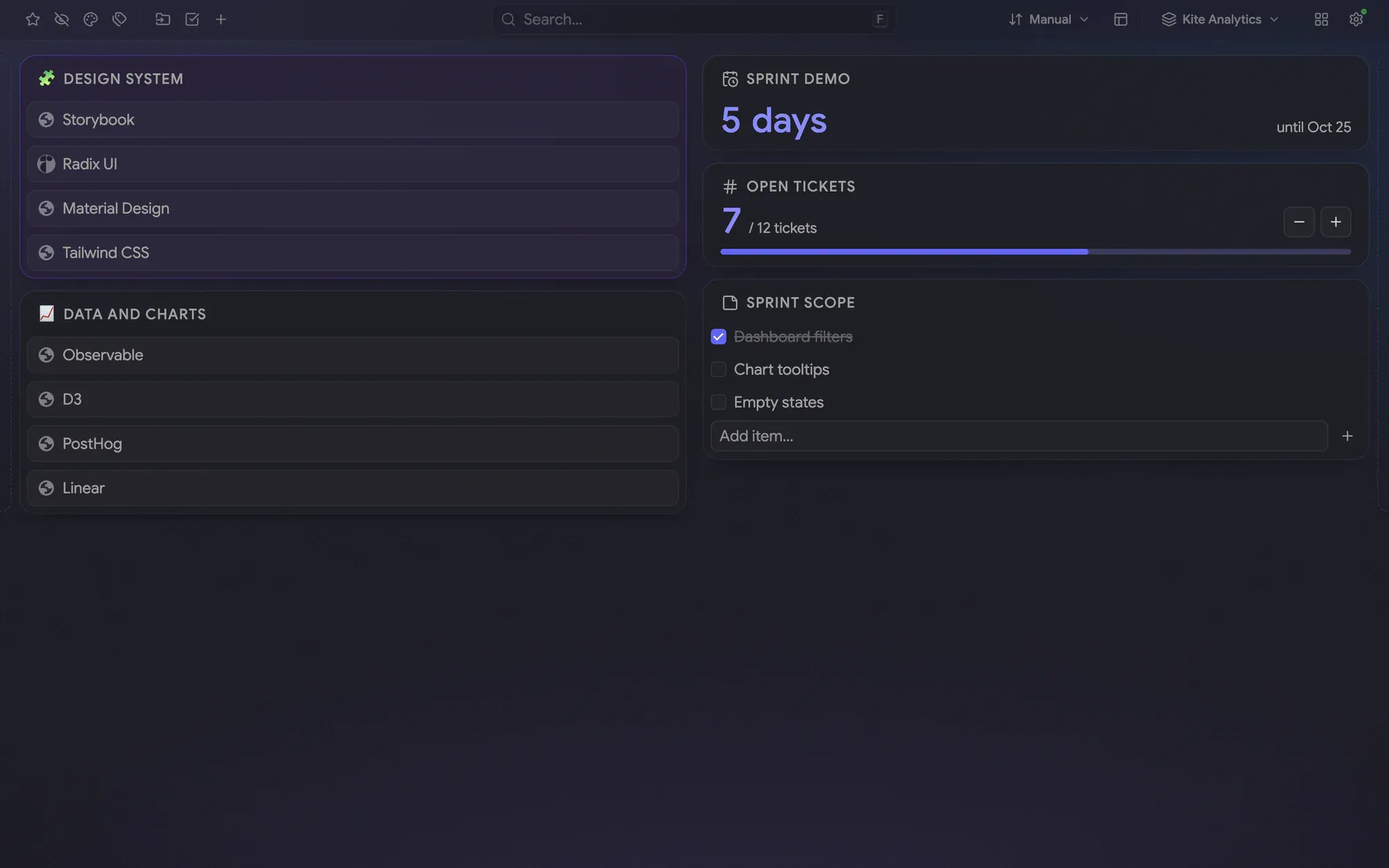
  • The Kite Analytics workspace: a dark indigo board with Design system and Data and charts folders, a sprint countdown, a ticket counter and a scope checklist
    The next client opens with its own look and board

One workspace for each client

Three clients, three kinds of work, one set of bookmarks. A workspace gives each client a board of their own: here Fernhill Café, Kite Analytics and Oak & Co. Bookmarks are shared by every workspace and never duplicated, so a link saved once is available everywhere, and hiding a folder takes it off one board without touching the bookmark

Its own look, columns and widgets

A workspace remembers its own theme and background, columns, widgets, notes, tags and sessions. Fernhill Café is a warm light board in a serif font with an amber accent on the Mist background and columns named Look and feel, Files and Deadline. Kite Analytics is dark and indigo with two columns, and Oak & Co has a look of its own too

Switch with @

Press F, type @ and the first letters of a client’s name, then press Enter. The palette lists every workspace and marks the current one, and the switcher in the header shows where you are. The next board opens with its own theme, columns and widgets

The recipe

Every setting behind the screenshots, so you can match the look

Font
Serif
Theme
Light
Accent
Amber
Background
Aurora
Layout
Columns
Toolbar
Off
Intensity
45%
Folder transparency
10%

How to build it

Everything below works in the current release. Parts that need Pro are marked

  1. Turn workspaces on in Settings → Workspaces and choose where the switcher sits Pro ↗ Workspaces
  2. Create a workspace per client: type its name in the switcher and press Enter. It starts as a copy of the one you are in Pro ↗ Workspaces
  3. Choose each client’s font, theme and accent in Settings → Appearance ↗ Appearance
  4. Pick a background such as Mist, Aurora or Silk in the same place Pro ↗ Appearance
  5. Name the columns and give each an icon: open the column’s ⋯ menu Pro ↗ The board and columns
  6. Add a Countdown widget for the deadline and a Counter widget for revision rounds Pro ↗ Widgets
  7. Add a note with a checklist for the brief ↗ Notes
  8. Switch clients with @ in the command palette: press F, type @ and the first letters of the name, then press Enter Pro ↗ Command palette

Your own bookmarks are not part of a setup. They stay where your browser keeps them, and the board shows them in the columns you choose

What’s free, what’s Pro

Free already covers the font, theme and accent, folders and links, notes with checklists and the command palette. Pro adds workspaces with the @ switch, backgrounds, column names and icons, and the Countdown and Counter widgets

Pro comes with a 14-day trial and no card, so you can try every Pro step before you pay

Freelancer clients

Build this setup

Install free, try Pro for 14 days, no card

Edge disables new-tab extensions after install — here's how to turn Pikamark back on

Read the manual

Free core · No account · Chrome, Firefox, Edge, Brave, Vivaldi and Opera